Group
Several objects as one — a piece, its stitch and its hardware are selected, moved and hidden with a single click instead of one at a time.
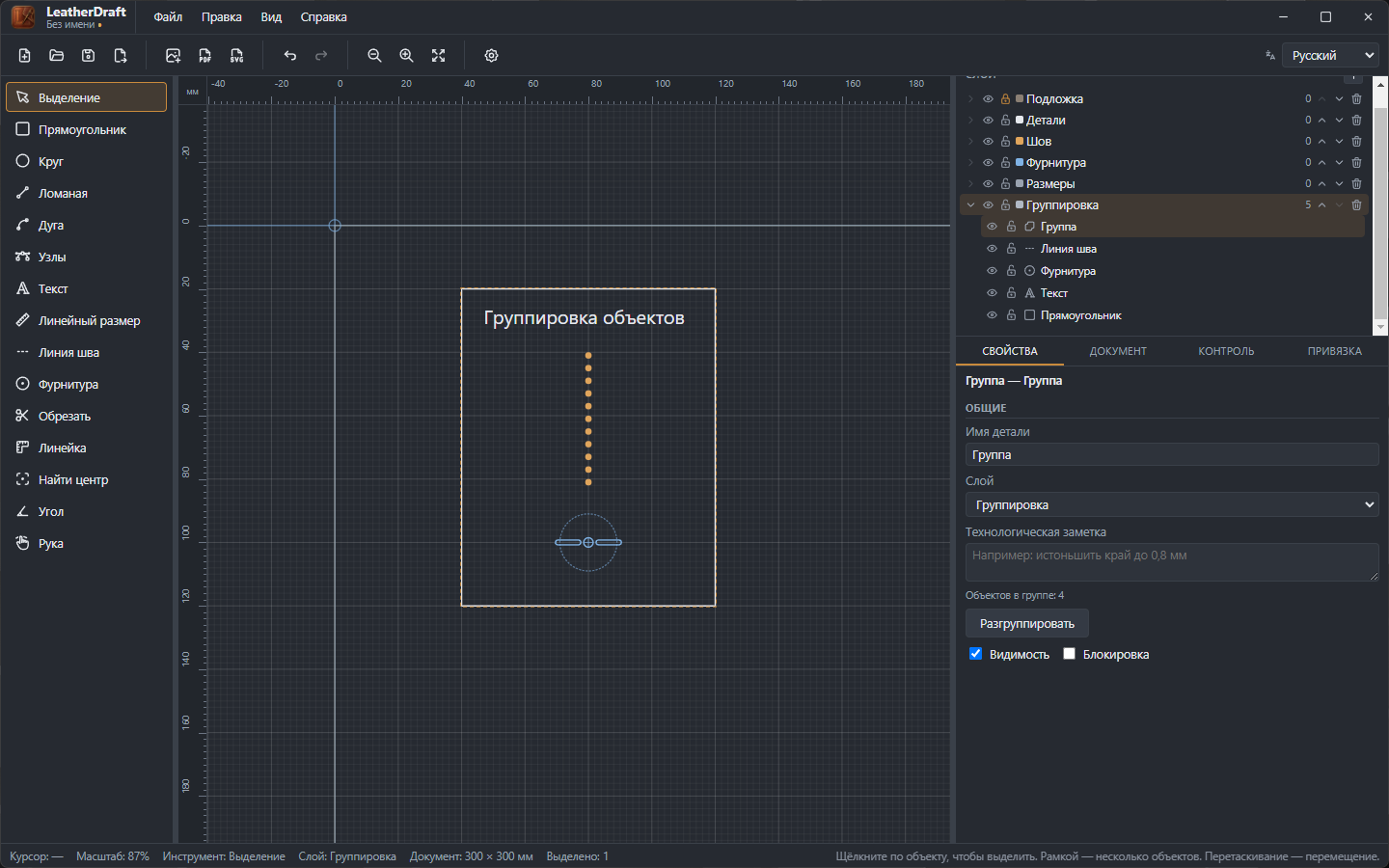
How to group
- Select at least two objects (with a marquee or Shift+click).
- Click "Group" in the properties panel.
- To split the objects apart again — select the group and click "Ungroup".
What's shared across the group, and what's per-member
A group isn't drawn or exported by itself — its members are, and they stay ordinary standalone objects. But three fields in the group's properties apply to all its members at once, not just to the group record itself:
- Layer
- Moves the whole group to another layer — every member moves along with it.
- Visibility
- Hides or shows every member at once.
- Lock
- Protects every member from being moved at once.
"Name" and "Production note", on the other hand, belong to the group itself as an entity — each member keeps its own name and note; the group doesn't override them.
Working with a single member
A plain click on any member selects the whole group. To edit one specific object inside it — double-click it: from then on, until you exit the group (click elsewhere or switch tools), single clicks on its members select them directly instead of the whole group.
The result of Mirror can be grouped too — a mirrored copy stays a group with its internal links, if it was a group already. For lining up several pieces without a shared operation, just aligning them against each other — see the alignment buttons in the Selection article.