Guide · Pan Space
Pan
Scroll the canvas with the mouse — a simple tool, but it has more than one way to turn on, which helps if you don't want to keep switching between drawing and navigating the canvas.
LeatherDraft — the "Pan" tool
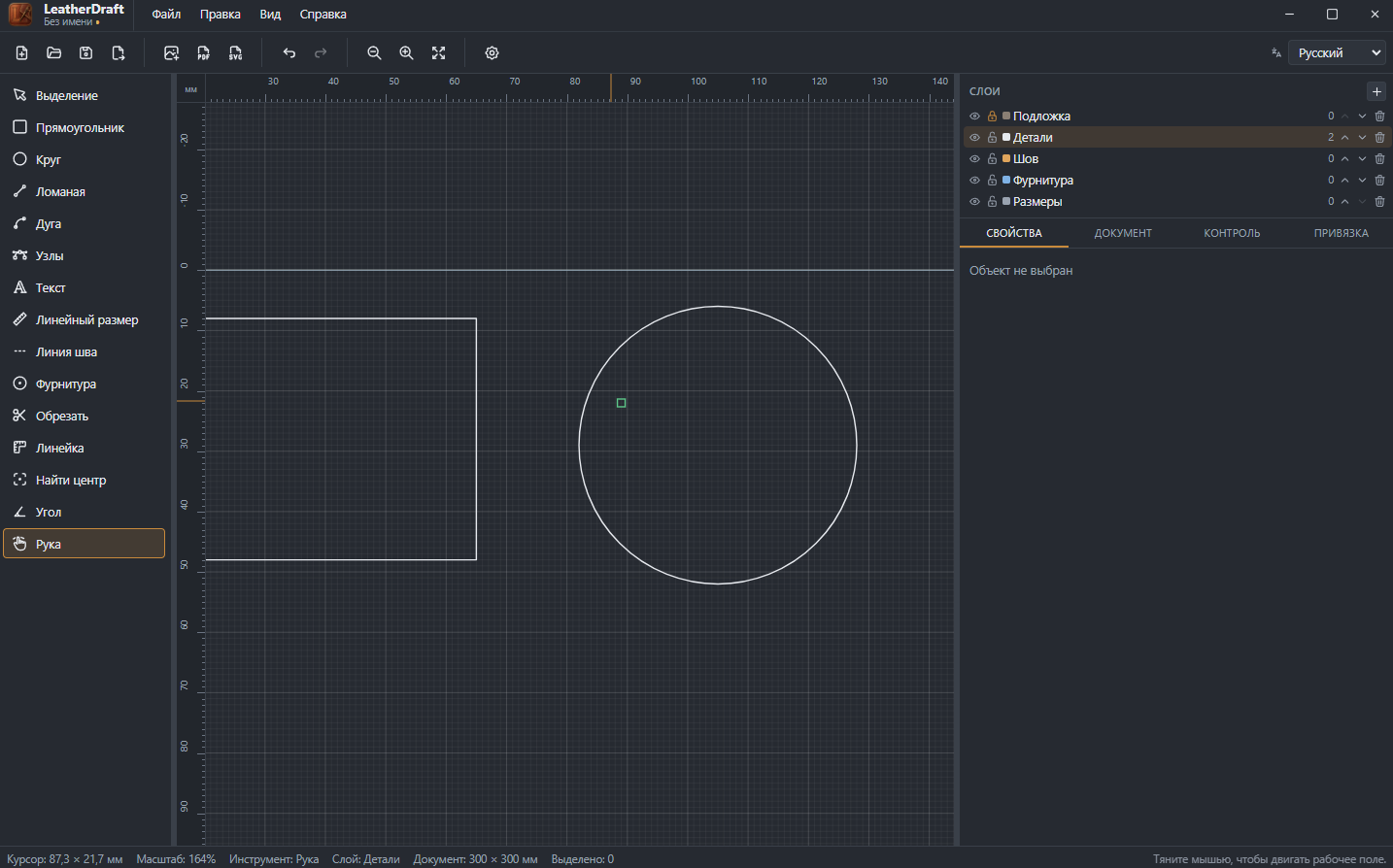
Three ways to move the canvas
- Click the "Pan" button on the left panel or press
Space, then drag with the mouse — the canvas moves until you switch tools back. - Hold
Spacedown while any other tool is active — Pan turns on temporarily, exactly for as long as the key is held, and releasing it returns you to whatever tool was active before. No need to pause drawing just to nudge the view. - Drag with the middle mouse button — also a temporary Pan, regardless of which tool is active.
Other ways to move the canvas view
Pan isn't the only way to navigate — the mouse wheel plays a role too:
- Mouse wheel
- Scrolls the canvas vertically — no key needs to be held.
Shift+ wheel- Scrolls horizontally.
Ctrl+ wheel- Zooms toward the point under the cursor — zooming in on wherever the mouse is, not the center of the screen.
Precise zoom commands
Ctrl+0- Fit all canvas contents into the window — the fastest way to find a piece you've lost after a lot of scrolling or zooming.
Ctrl+1- Reset zoom to 100% — a life-size view on screen, independent of the content.
Ctrl+=/Ctrl+-- Zoom in / out smoothly, step by step.
Pan never selects or moves the objects themselves — only the viewpoint. If you
accidentally dragged a piece instead of empty space, "Selection" is probably active
rather than "Pan" — switch with the Space key or check which button is
highlighted in the toolbar.