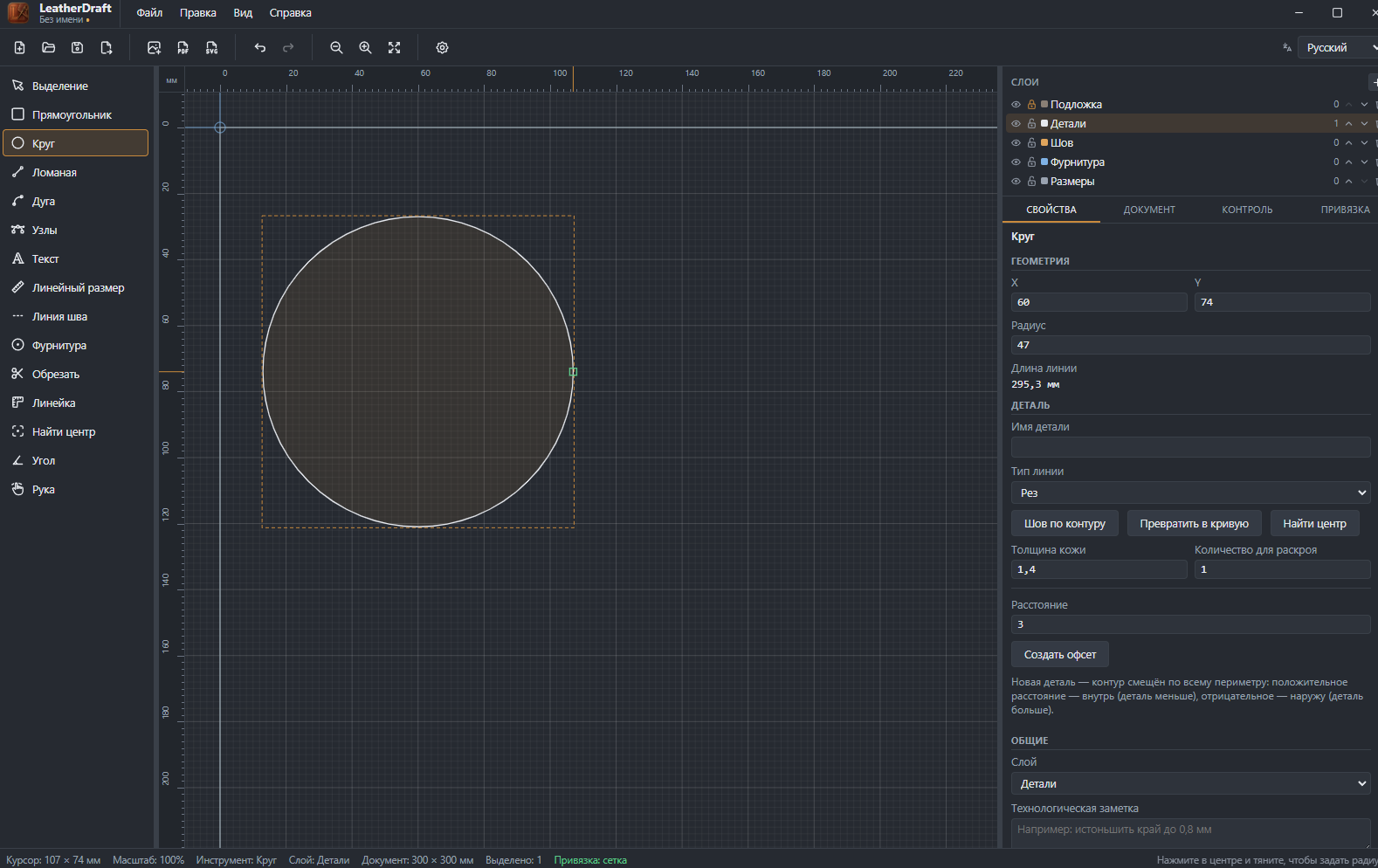
Circle
A round piece or hole — anything from a coin pocket to a seat for an eyelet you don't want to turn into real hardware yet. Built from the center, with an exact radius, not by dragging an edge by eye.
How to draw
- Click the "Circle" button on the left panel or press
C. - Click the point that will become the circle's center — not an edge, the center itself.
- Without releasing the mouse button, drag outward — the distance from the center to the cursor is the radius.
- Release the mouse button to finish. The exact radius can be adjusted right away in the properties panel.
For a circle of an exact diameter "by the numbers" — start dragging and, without
releasing the mouse, type a number: a "Diameter" field appears, and Enter
finishes the shape at exactly that size.
Geometry
- X, Y
- Position of the circle's center on the canvas, in millimeters.
- Radius
- The circle's only dimension — type an exact number instead of fitting it with the mouse.
- Line length
- Circumference, calculated automatically.
Common piece properties
The "Piece" block under the geometry is the same as for the rectangle and polyline: line type, leather thickness and cut quantity, the "Stitch along contour" and "Convert to curve" buttons (handy if a circle needs to be shaped into an oval or teardrop via nodes), "Find Center", and building an offset with a set margin. Covered in detail in the Rectangle article — no need to repeat it here, the fields are identical.
Tip: if a circle was meant as a seat for an eyelet or snap, it's often easier not to draw it separately but to place the right hardware type directly with the Hardware tool — there, the hole diameter is already part of the piece rather than an approximate circle next to it.