Guide · Mirror Ctrl+M
Mirror
A mirrored copy of the selection — the second half of a wallet without redrawing it. The copy sits flush against the original at the bounding-box edge, not on top of it — an instant matching pair, not two objects stacked in one spot.
LeatherDraft — "Mirror"
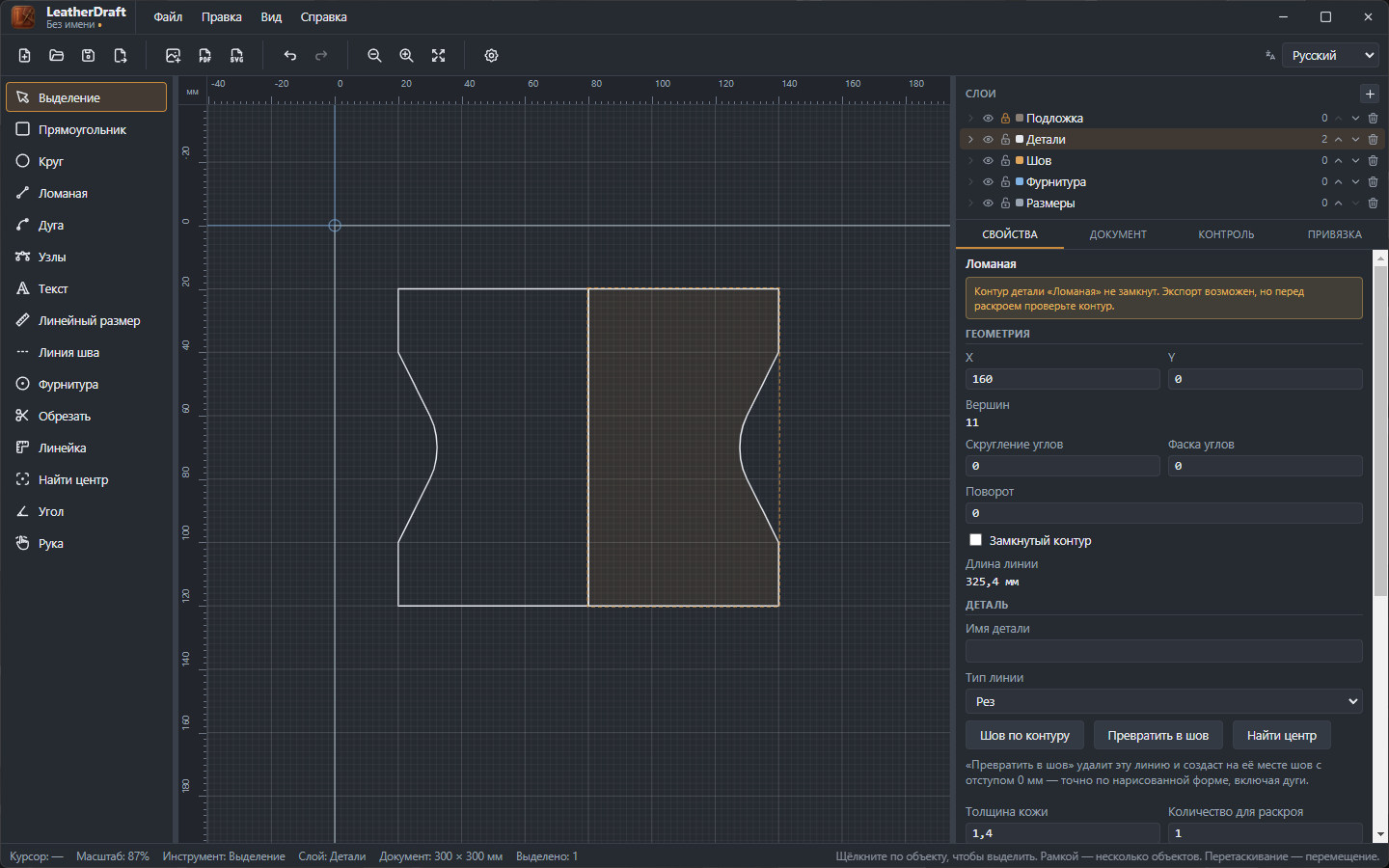
How to mirror
- Select one or more objects.
Ctrl+M— mirror horizontally.Ctrl+Shift+M— vertically.
The mirror axis defaults to the edge of the selection's bounding box, so the copy lands right next to the original, as in the screenshot above — instead of mirroring around its own center, which would land it exactly on top of the source.
What happens to the copy
- The original stays in place
- Mirror doesn't replace the object, it creates a full independent copy — like "Ctrl+D", just flipped.
- Name
- If the object had a name, the copy gets the same name with a ↔ (horizontal) or ↕ (vertical) mark added — easier to tell in the layers panel which piece is whose pair.
- Links within the selection are preserved
- If the mirrored selection includes a piece along with its stitch and hardware, the copy's stitch stays linked to the copy's piece, not the original. Links to objects OUTSIDE the selection are dropped, though — a copied dimension or stitch that referenced an external object becomes free-standing.
A whole group can be mirrored too (see Group) — every member is mirrored and stays part of the group, with its internal links intact.