Nodes
Precise editing of an already-drawn contour — node by node. A polyline, or a rectangle/circle converted to a curve, can be worked into the shape you want after a rough contour is already on the canvas — you don't have to draw it perfectly on the first try.
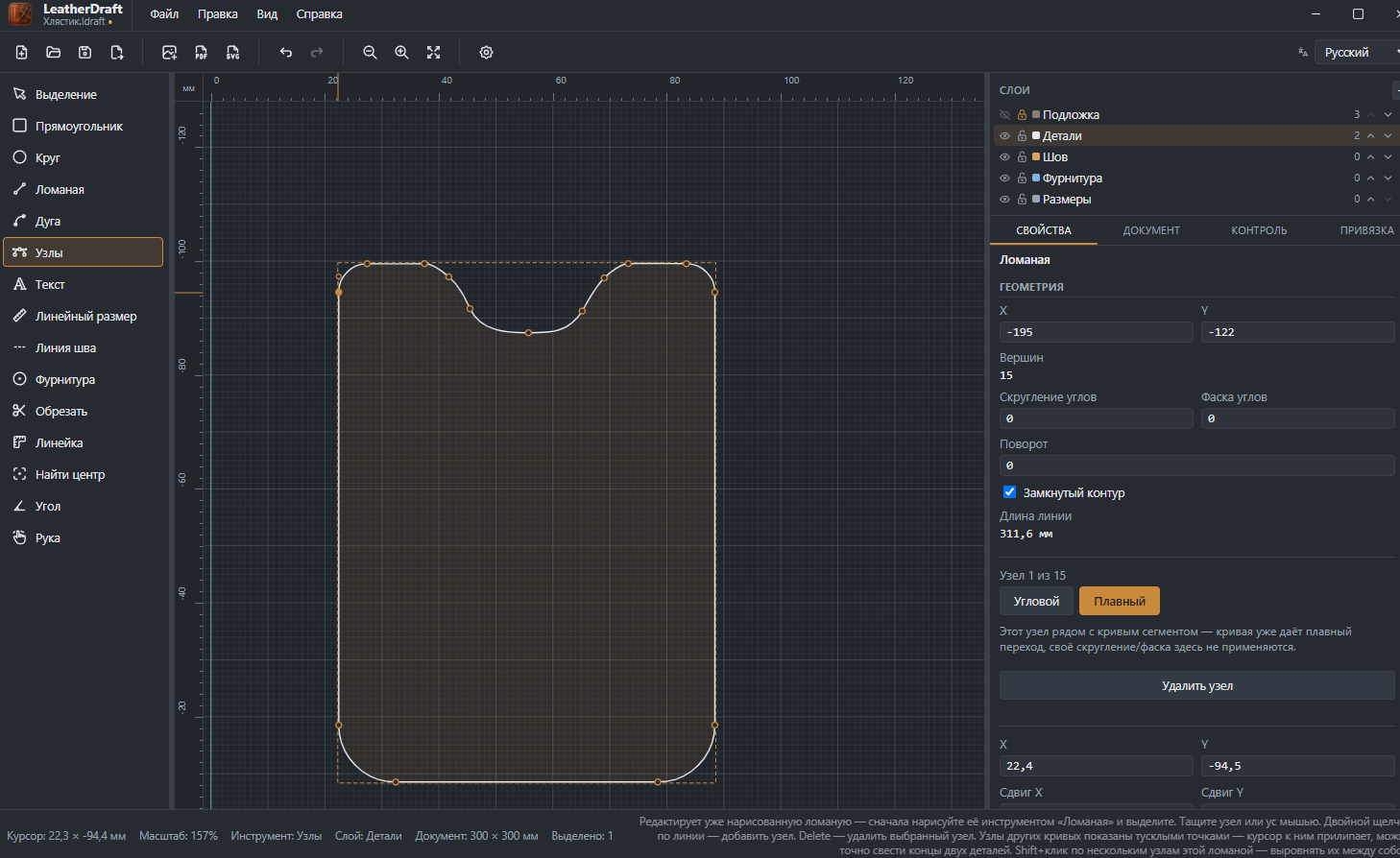
How to edit
- First draw a contour with the "Polyline" tool (or a rectangle/circle via "Convert to curve") and select it.
- Click the "Nodes" button on the left panel or press
N— node markers appear on the contour. - Drag a node itself to move that point, or its "handle" (direction control) to change the curvature of the adjoining segment.
- Double-click a line between nodes to add a new node right at that spot.
- Select a node and press
Deleteto remove it — the contour rebuilds from the remaining points. -
Drag a node right up against a neighboring node on the same polyline — they merge
into one, and the extra point vanishes on its own, no separate
Deleteneeded. This only works with an immediate neighbor along the contour, not just any nearby point — so on a sharp fold it won't accidentally merge different sides of the contour. -
Shift+click several nodes on the same polyline to select them all at once — handy for aligning a group of points against each other in one operation.
Nodes belonging to other pieces on the canvas show up as faint dots — the cursor snaps to them, so you can line up the edge of one piece exactly with the edge of another without guessing the scale by eye. This brings the coordinates of two points together, but doesn't merge the nodes into one — for that, use the trick above, which only works within a single polyline.
Properties of the selected node
In the screenshot above, one of the contour's nodes is selected — the "Node 1 of 15" heading shows which node it is:
- Corner / Smooth
- Node-type switch — corner gives a sharp break, smooth gives a fluid curve transition through that point (with handles on both sides).
- Corner treatment
- Corner nodes only: "Inherit" takes the contour's general setting (the "Rounding" / "Chamfer" fields from the polyline's own properties), or "Sharp", "Round", "Chamfer" to force it for this specific node, overriding the general setting. If the node sits next to a curved segment, the field is unavailable — the curve already gives a smooth transition, so there's nothing to round or chamfer here.
- Corner size
- Rounding radius or chamfer cut length at this specific node, when its treatment isn't set to "Inherit".
- X, Y
- Exact node coordinates on the canvas — type a number instead of dragging with the mouse.
- Offset X, Offset Y
- Shift relative to the current position. If several nodes are selected via
Shift+click, the shift applies to all of them at once. - "Delete node"
- An open contour can't drop below two points, a closed one below three — the button locks before the shape could fall apart.
The contour in this screenshot was drawn with the Polyline tool — that article covers corner and smooth nodes in detail, right during the drawing process, before ever switching to "Nodes".