Guide · Selection V
Selection
The default and most-used tool — it selects a piece to view or edit its properties, moves it around the canvas, and groups objects together so you can align, merge or mirror several of them at once.
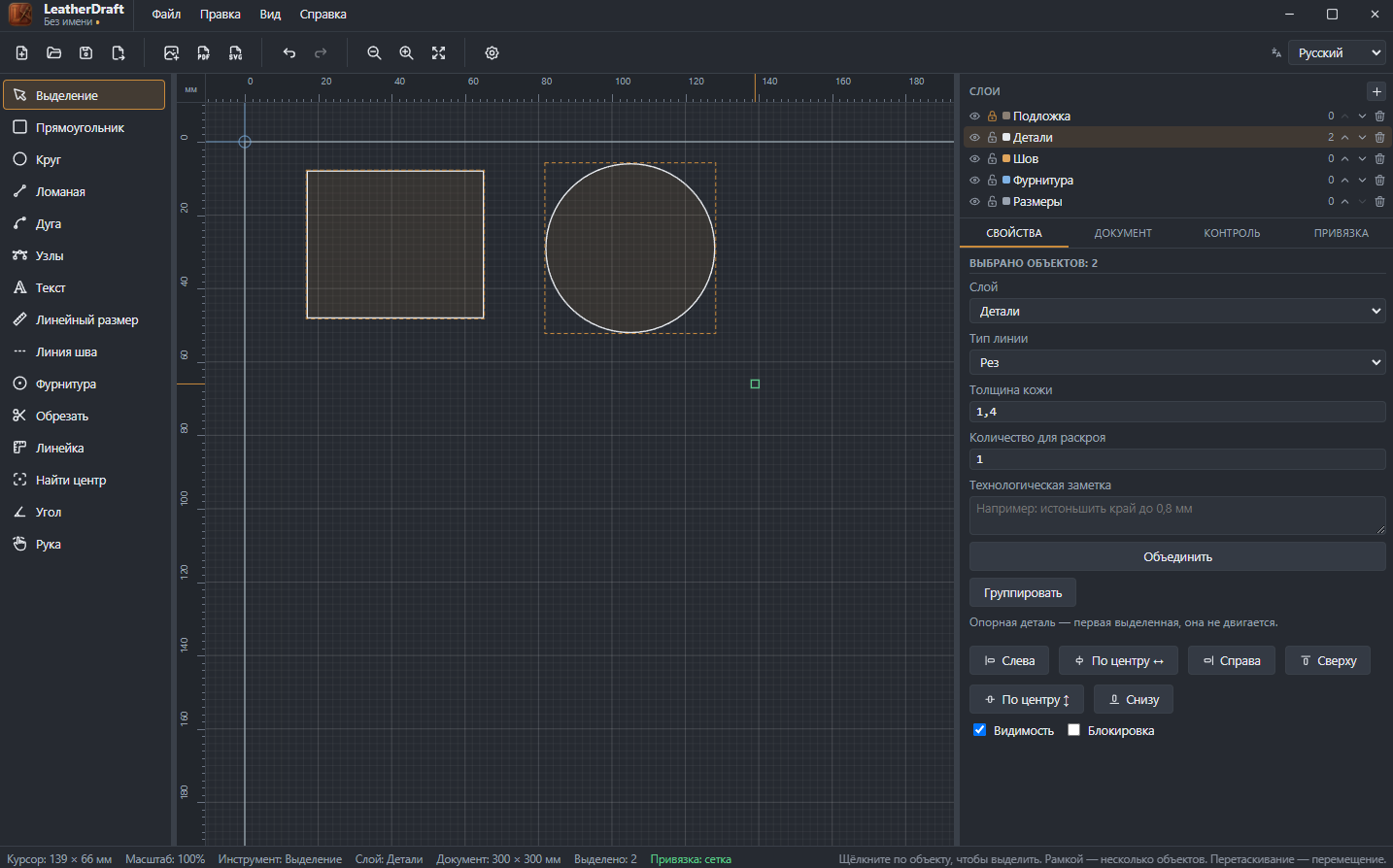
LeatherDraft — box selection
How to select
- Click the "Selection" button on the left panel or press
V— it's also the tool active when the app opens. - Clicking an object selects it alone, clearing the previous selection.
- Clicking empty space and dragging draws a marquee that grabs everything fully inside it: in the screenshot above, a single drag selected both the rectangle and the circle.
- Dragging an already-selected object moves it around the canvas, snapping to the grid and to nearby pieces' key points.
DeleteorBackspaceremoves the selection — the second key is there for Mac, which has no dedicated forward-delete key.
With several objects selected
In the screenshot above, two objects are selected at once — the "2 objects selected" heading unlocks a set of operations not available for a single object:
- "Merge"
- Builds a single contour from the overlapping area of several pieces — works if at least two selected shapes (circle, rectangle or polyline) actually overlap, not just touch at an edge.
- "Group"
- Links the objects into a group — from then on it's selected and moved as one, until ungrouped. See the Group article for details.
- Alignment — left / center ↔ / right / top / center ↕ / bottom
- The anchor piece — whichever was selected first — doesn't move; the rest line up against it along the chosen side or axis.
- Visibility, Lock
- Quick toggles for all selected objects at once — hide them from the canvas or protect them from accidental moves.
Handy keyboard shortcuts
Some commands for selected objects are faster from the keyboard than hunting through the UI:
Ctrl+C/Ctrl+V/Ctrl+D- Copy, paste, duplicate the selection in place.
Ctrl+A- Select every object on the canvas.
Ctrl+M/Ctrl+Shift+M- Mirror the selection horizontally / vertically — see the Mirror article for details.
Ctrl+]/Ctrl+[- Move the object one layer up / down in draw order. Add
Shiftto jump straight to the top or bottom. Ctrl+Shift+T/R/K- Dialogs for moving, rotating and scaling the selection by exact numbers instead of by eye with the mouse.
Ctrl+Shift+D- Array copy — repeat the selection in a row with a set X/Y step.
Ctrl+Shift+U- Same as the "Merge" button in the properties panel.
While dragging, the cursor snaps not just to the grid but to nodes and edges of other pieces too — handy when assembling a multi-piece item where parts need to meet with no gap.