Trim
Remove the extra tail of a line where one contour crosses another — without computing the intersection point by hand. Click the unwanted stretch, and it's gone, right up to the nearest intersections; the rest of the line is untouched.
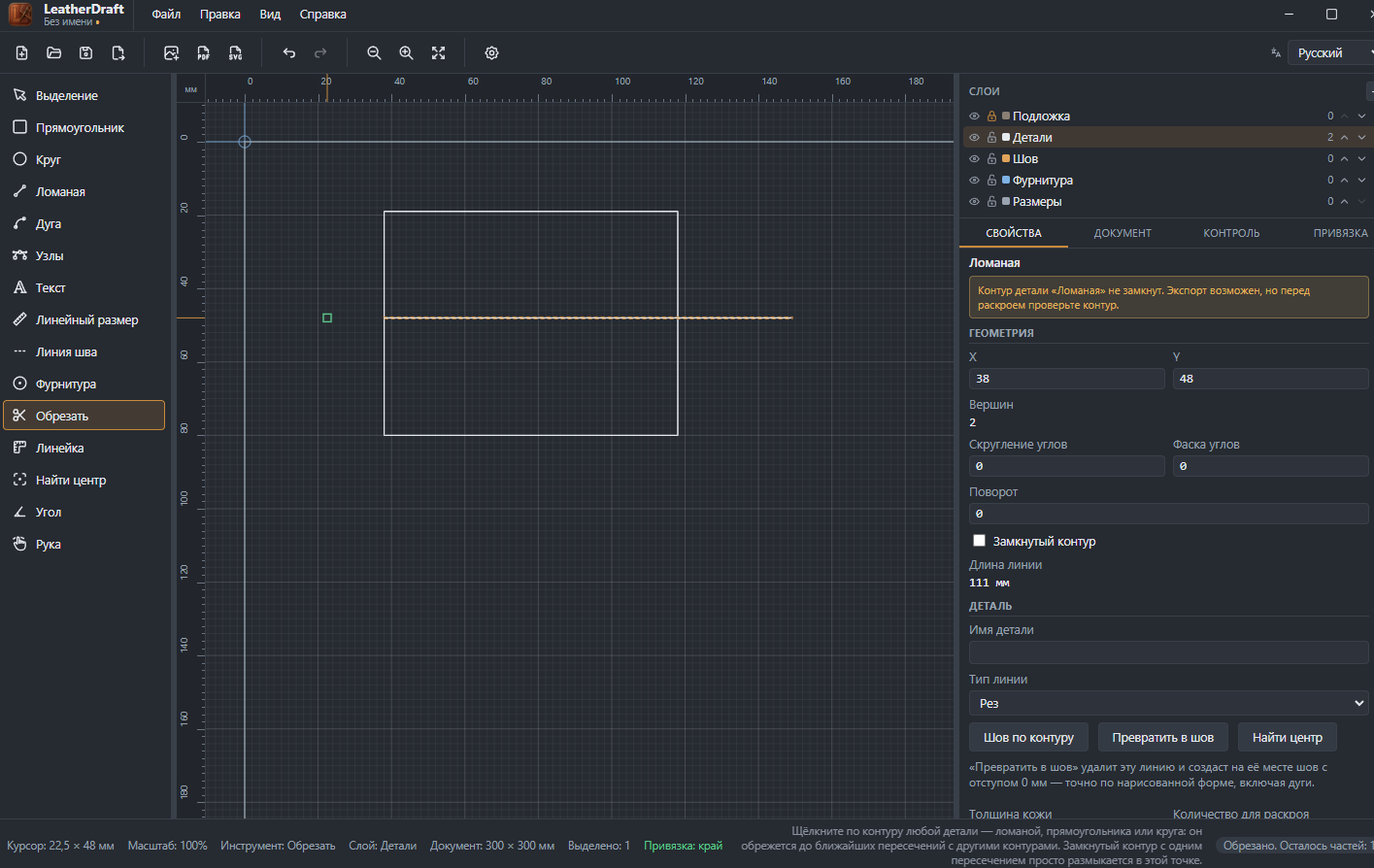
How to trim
- Click the "Trim" button on the left panel or press
X. - Click the stretch of line you want removed. In the screenshot above, a line ran through a rectangle, sticking out on both ends — clicking the left "tail" removed just that, leaving the segment inside and to the right of the rectangle untouched.
Only a piece's contour can be trimmed — a polyline, rectangle or circle. If a line has no intersections with other contours, there's nothing to trim, and the app will say so. For a closed contour with exactly one intersection, trimming simply opens it at that point instead of removing a whole piece.
What's left after trimming
The trimmed segment is an ordinary polyline, with its own geometry and piece properties, just as if it came from the Polyline tool. "Trim" adds nothing specific to the properties panel — the tool only changes the contour's shape.