Offset
A copy of a piece's contour, shifted inward or outward by a set distance — a lining slightly smaller than the face side, a seam allowance, a second layer in a leather stack. Not a tool on the left panel, but a field and button in any closed piece's properties.
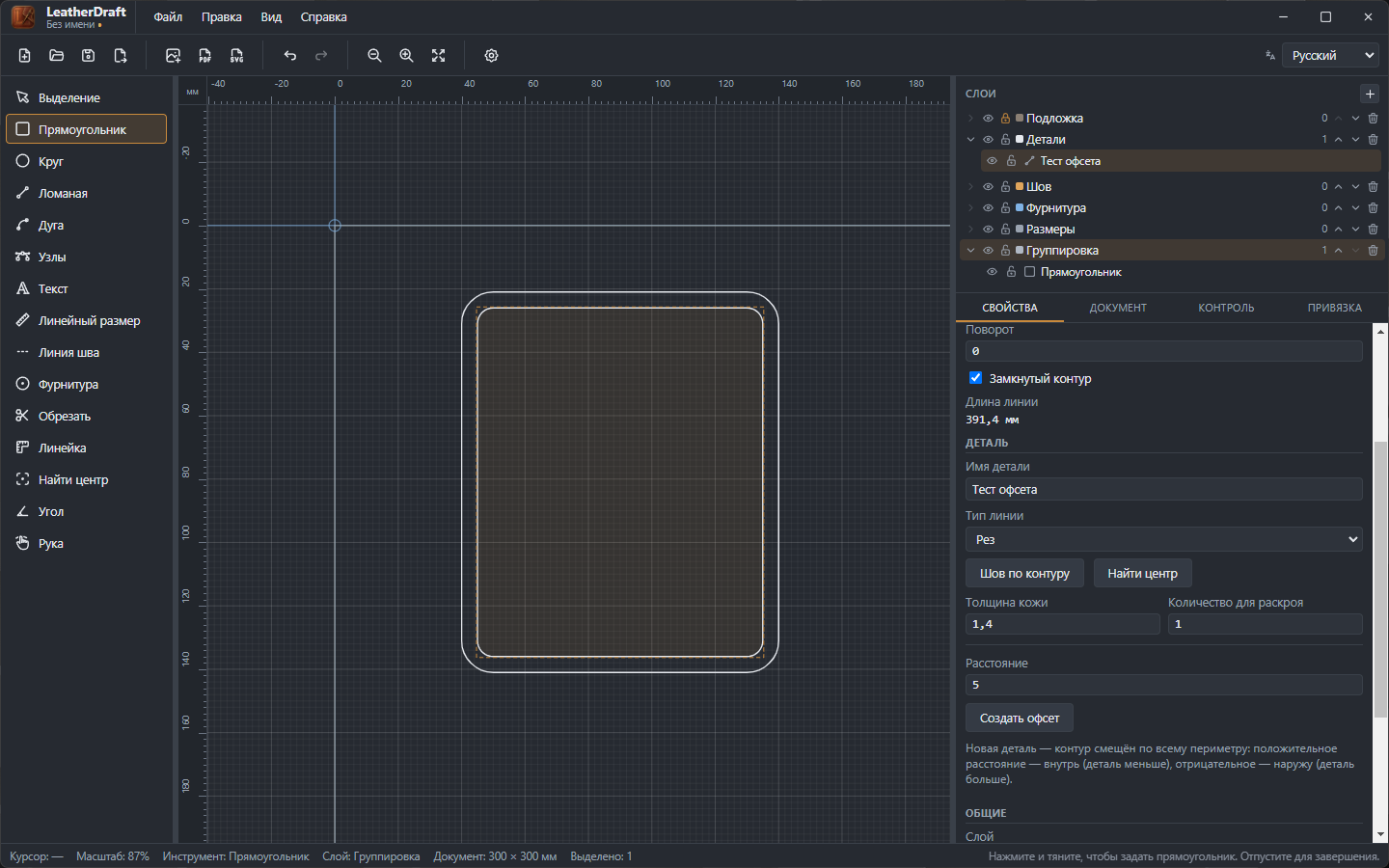
How to build it
- Select a finished closed piece — a rectangle, circle or polyline.
- In the "Piece" block, type a number into the "Distance" field.
- Click "Create offset" — a new, independent piece appears with the same contour, shifted by that distance around the whole perimeter, as in the screenshot above.
- Distance — positive number
- The contour moves inward: the new piece is smaller than the original. Good for a lining.
- Distance — negative number
- The contour moves outward: the new piece is larger than the original. Good for a seam allowance.
The offset properly recalculates rounded corners too, rather than just shifting the straight sides — visible on the inner frame in the screenshot above.
An offset is an independent piece, not a link
A key difference from Stitch Line: the result of "Create offset" is an ordinary standalone piece, with its own nodes, leather thickness and cut quantity. It does NOT track the source contour — if you edit the original afterward, the offset copy keeps its old shape and needs to be rebuilt from scratch.
Turning an offset into a stitch
A common next step: the offset isn't needed as a separate cut piece, just as the exact line the stitch should follow. Since an offset is a closed contour, the "Convert to stitch" button isn't available for it (it only works on open lines). Instead:
- Adjust the offset copy with the Nodes tool if needed — it's an ordinary contour, edited like any polyline.
- Select the OFFSET itself (not the original) and click "Stitch along contour".
- On the resulting stitch, set "Edge margin" to 0 — the run will follow the offset's contour exactly.
If the offset piece itself isn't needed as a separate cut piece afterward, don't
delete it right away: the stitch is tied to it by a live reference (source),
and deleting the source would orphan the stitch. First click "Detach from piece" in
the stitch's properties — this freezes its current shape and removes the link — only
then hide or delete the offset.