Guide · Text T
Text
A text label right on the pattern — a model name, a version number, a cutting note. A simple piece with no contour geometry: just position, font size and color.
LeatherDraft — the "Text" tool
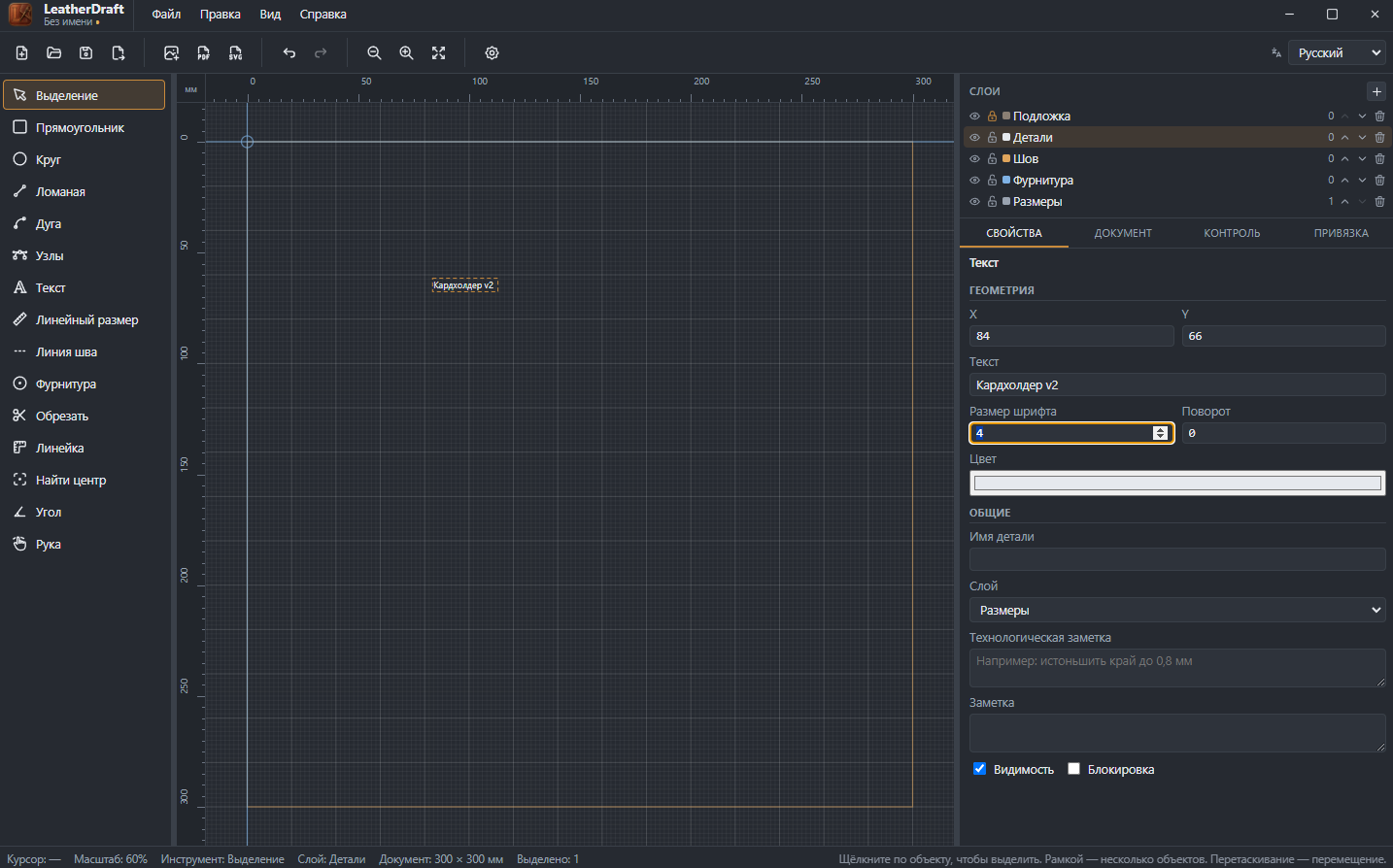
How to add a label
- Click the "Text" button on the left panel or press
T. - Click on the canvas where the label should start — an empty text object appears.
- The text itself is typed not on the canvas but in the "Text" field of the properties panel on the right — in the screenshot above, "Card holder v2" was typed there. Editing or retyping it also only happens through that field.
Properties
- X, Y
- The label's anchor point on the canvas.
- Text
- The label's actual content — a plain single-line input.
- Font size
- In millimeters, like every other size in the document — not typographic points.
- Rotation
- Angle in degrees, if the label shouldn't run strictly horizontal.
- Color
- Color of the text itself.
Text has no "Piece" block with leather thickness or line type — it isn't a cut piece, just an annotation on top of the drawing.