Guide · Ruler M
Ruler
A quick measurement that doesn't change the drawing — distance, angle and the per-axis difference between two points. Adds or removes nothing from the project, just shows a number.
LeatherDraft — the "Ruler" tool
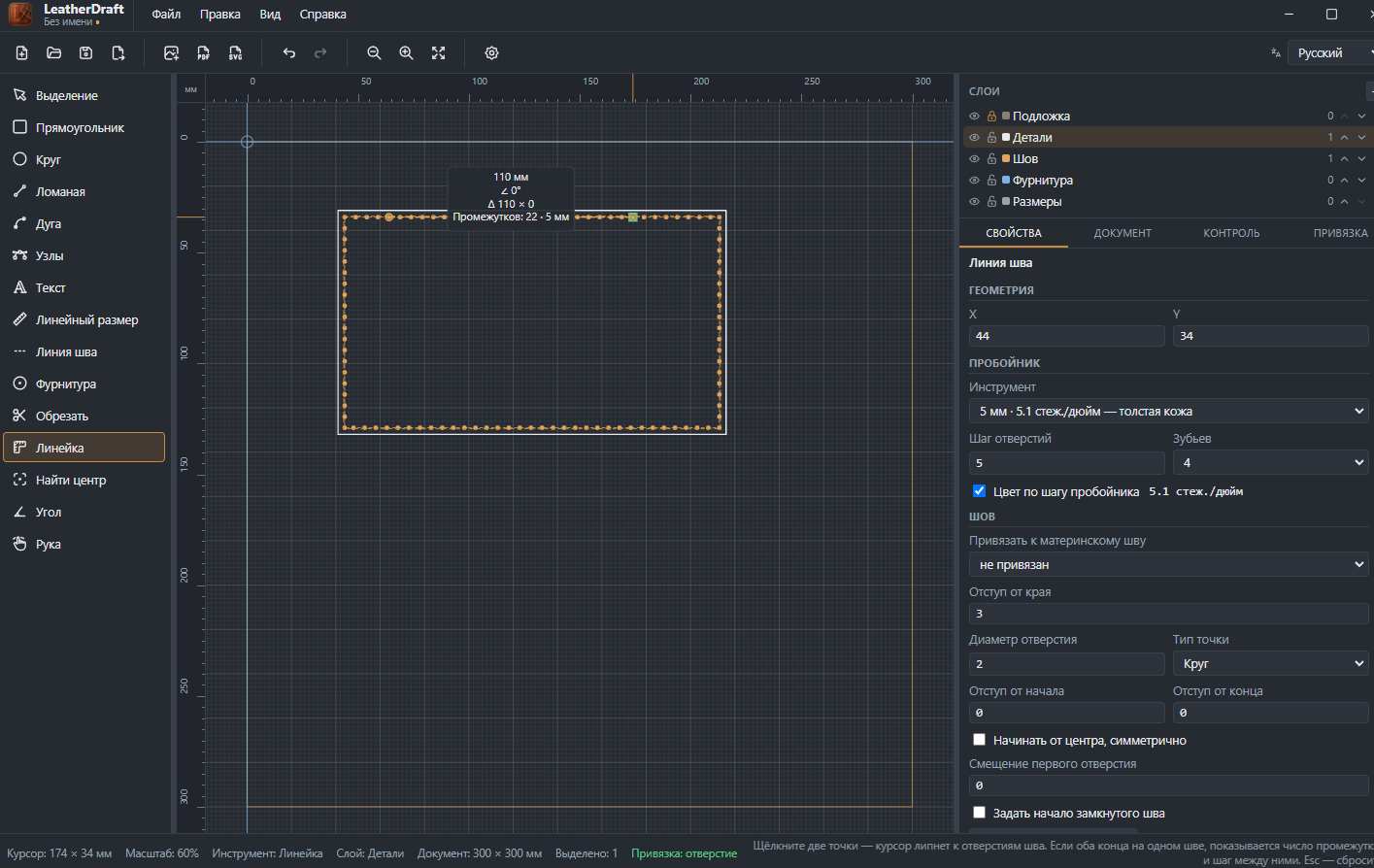
How to measure
- Click the "Ruler" button on the left panel or press
M. - Click two points on the drawing — the cursor snaps to stitch holes and pieces' key points.
Escclears the current measurement to start over.
What the tooltip shows
- Distance
- Straight-line distance between the two points, in millimeters.
- Angle
- Angle of the segment between the points relative to horizontal.
- Δx / Δy
- Per-axis difference separately — handy when the horizontal or vertical spread matters more than the straight-line distance.
- Intervals, Spacing between them
- Appears only if both measured points landed on holes of the same stitch — as in the screenshot above. Shows how many hole-to-hole intervals fell between the points and their actual spacing, without recalculating the stitch itself.
The Ruler never adds anything permanent to the drawing — unlike the Find Center tool, which turns the same kind of two-point pick into a permanent guide mark.