Find Center
The exact midpoint of a segment — accounting for its angle, not just for strictly horizontal and vertical lines. Unlike the Ruler, it leaves a permanent mark on the drawing instead of just showing a number.
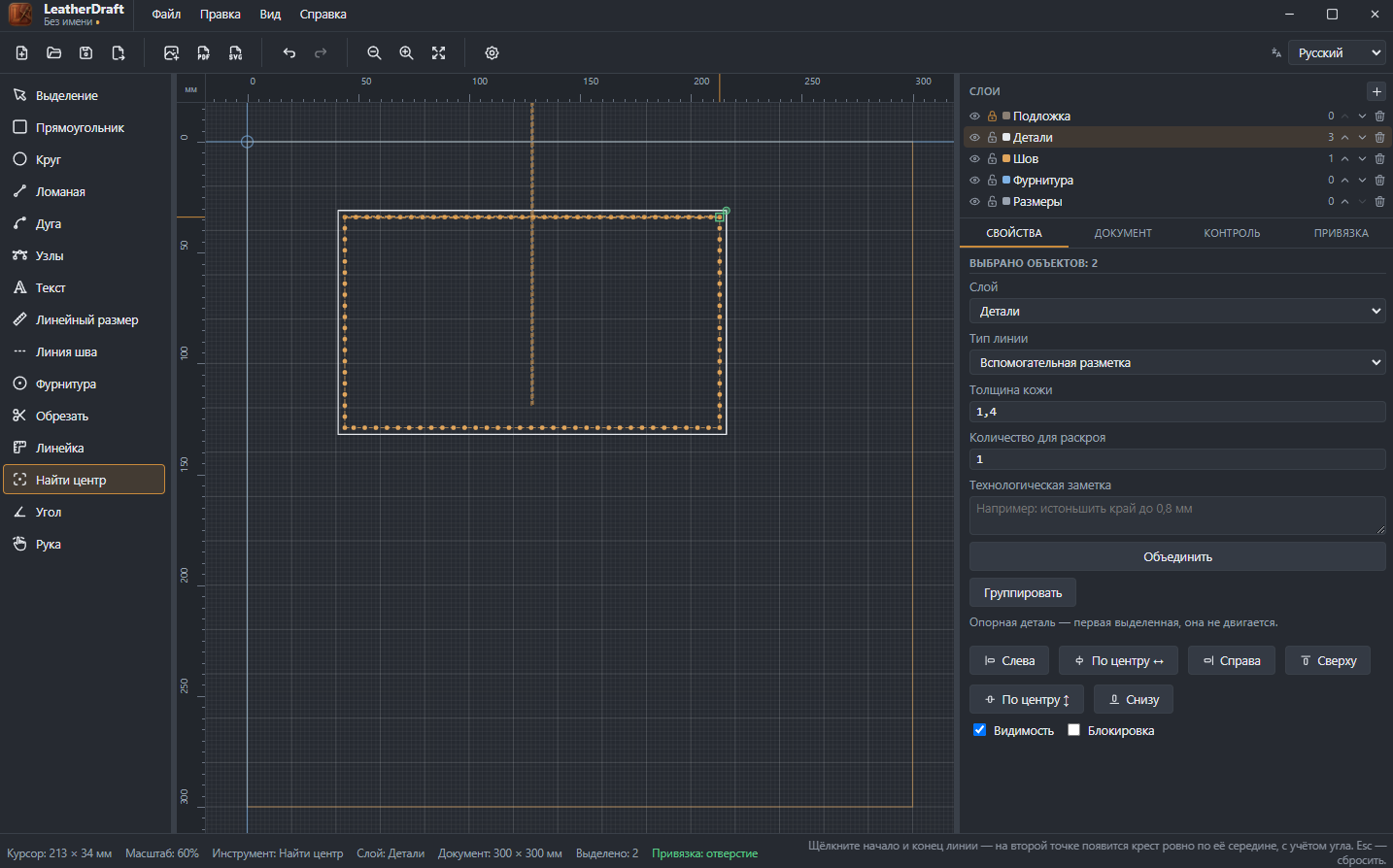
How to find a midpoint
- Click the "Find Center" button on the left panel or press
F. - Click the start of a segment, then its end — they don't have to be nodes on the same piece, any two points on the drawing work.
- On the second click, a crosshair appears exactly halfway between them, accounting for the segment's angle — not just an average of X and Y, but an actual point on the line itself.
Esccancels an unfinished measurement.
What stays on the drawing
The crosshair isn't an icon — it's two real intersecting lines of the "Guide" line type (the same type used by the line from the Angle tool), passing exactly through the found point at the original segment's angle. Both lines can be selected and deleted like ordinary objects — once the midpoint is found and marked, the tool can be dismissed and the crosshair stays put.
Useful for placing hardware exactly at a piece's center: first find the center from two opposite contour points, then click the intersection with the Hardware tool — the cursor snaps right to it.