Guide · Linear Dimension D
Linear Dimension
A reference dimension line right on the drawing — double-check yourself before printing or cutting, without opening every piece's properties one by one. A number on the drawing, not in a separate table.
LeatherDraft — the "Linear Dimension" tool
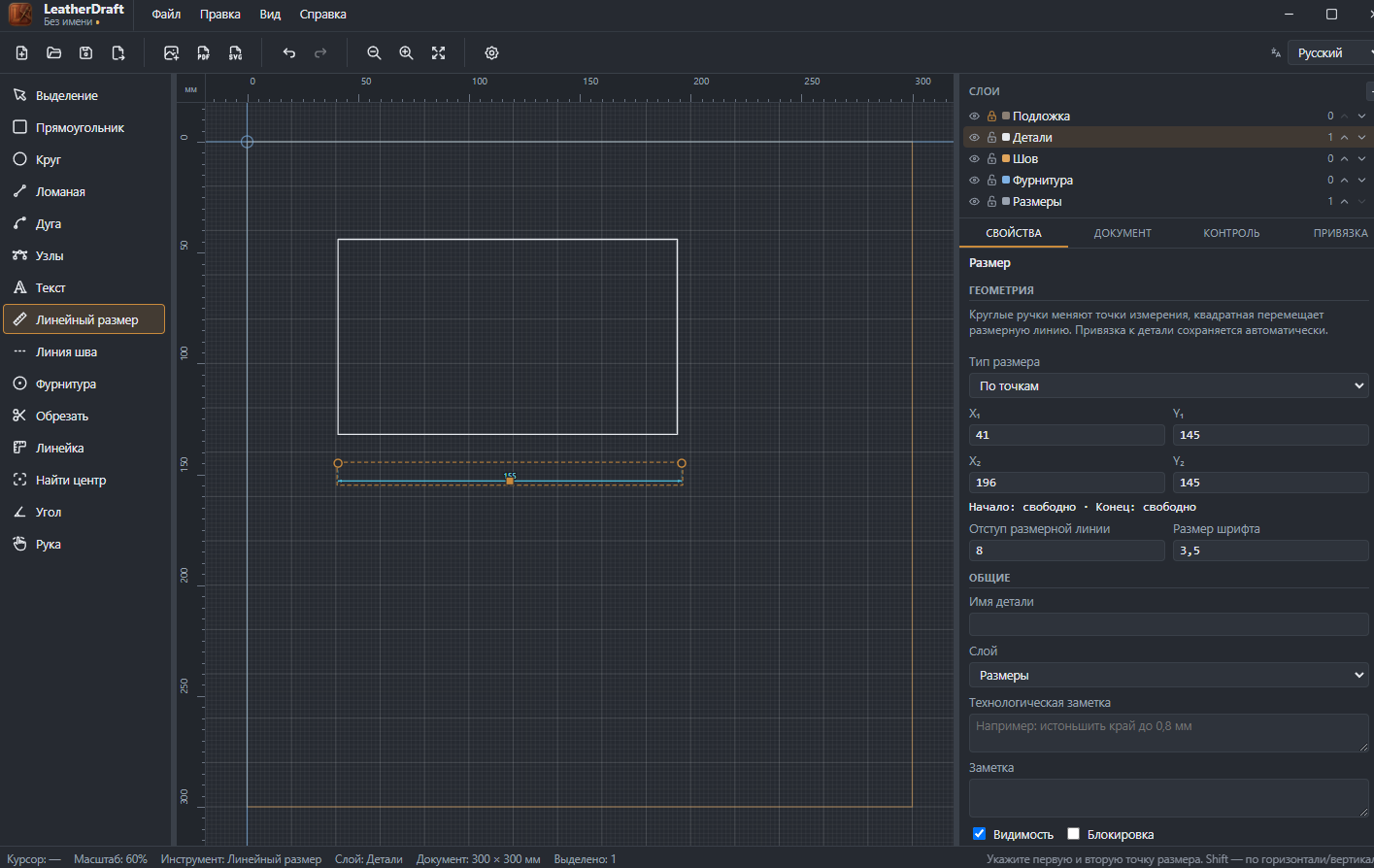
How to add a dimension
- Click the "Linear Dimension" button on the left panel or press
D. - Set the first point of the dimension.
-
Set the second point — either by clicking on the canvas, or, without letting go of
the keyboard, type an exact number into the "Length" and "Angle" fields that appear
and press
Enter. The same numeric-entry trick works with the Angle tool too. - Hold
Shiftto make the line strictly horizontal or vertical.
Properties
- Dimension type
- "By points" — the dimension runs along the segment between the two points as-is, or forced "Horizontal" / "Vertical" — then only the matching projection is measured.
- X₁, Y₁, X₂, Y₂
- Exact coordinates of both dimension points.
- Start / End: free or attached
- If a dimension point was placed on a piece's node or edge, it tracks that point when the contour is edited — the "attached" status shows this is the case.
- Dimension line offset
- How far the dimension line is offset to the side from the measured segment itself — so the label doesn't overlap the drawing.
- Font size
- Size of the number label, in millimeters.
On the canvas, a finished dimension's round handles at the ends move the measurement points themselves; the square handle in the middle moves the dimension line to the side without touching what's actually being measured. Attachment to a piece is kept automatically either way.